Framebin Draw: a free online whiteboard with real app screens
· Tools · 6 min read
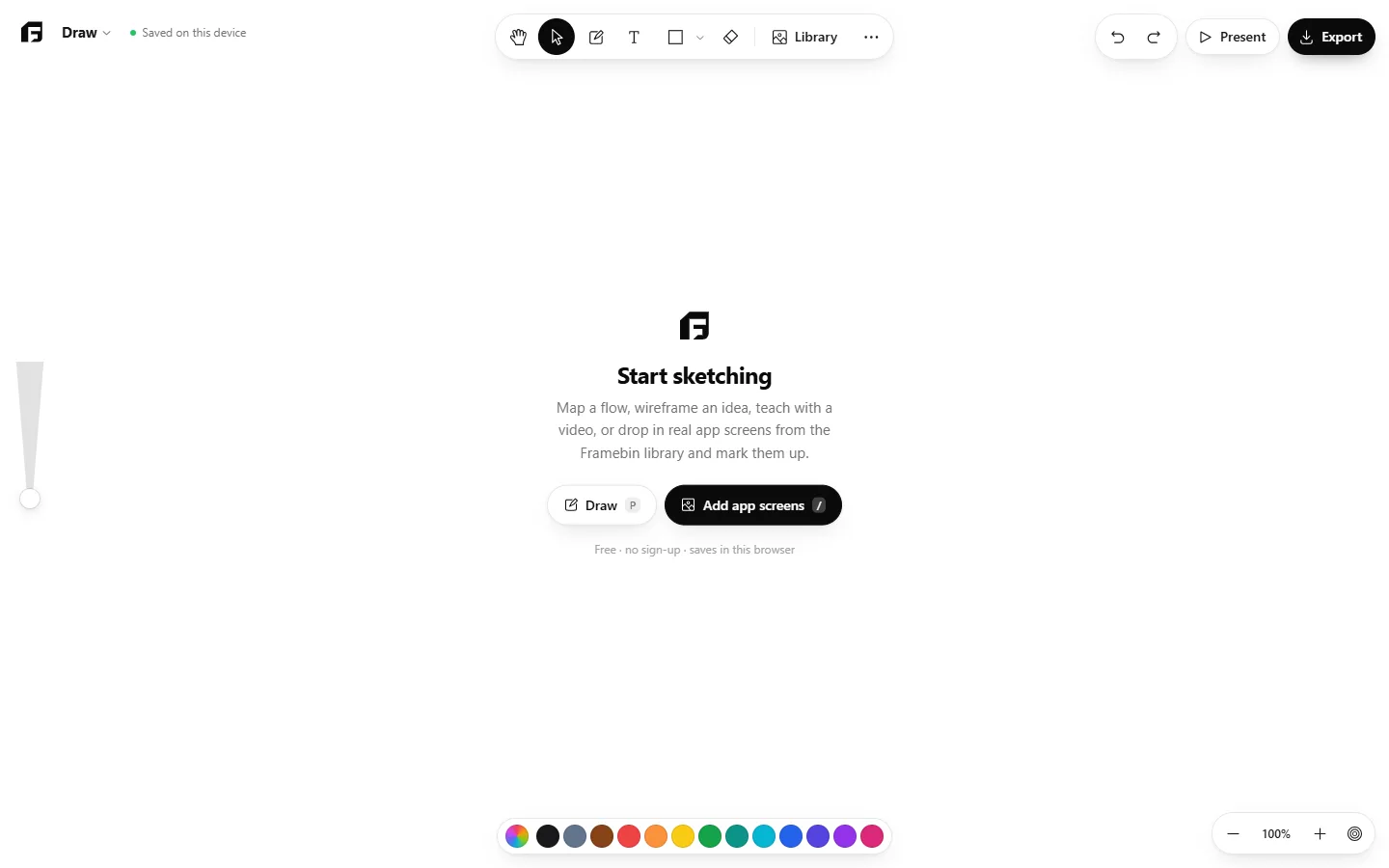
Sketch, diagram, wireframe and teach on a free browser whiteboard. Drag in real app screens, logos and 200,000+ icons, present full screen with a laser pointer, and play videos right on the board. No sign-up.
Most whiteboards start empty, and so does every design review. You screenshot an app, paste it into a slide, draw a wonky arrow, and lose ten minutes before anyone has said anything useful. Framebin Draw is a free online whiteboard that starts with the material designers actually talk about: real screens from real apps.
It runs in your browser, needs no account, and saves your board on your device as you go. Open framebin.co/draw and start sketching.
What you can do with it
- Sketch and diagram. A pen with pressure-style strokes, text, rectangles, ellipses, diamonds, arrows and lines, all with a hand-drawn feel that keeps early ideas looking early.
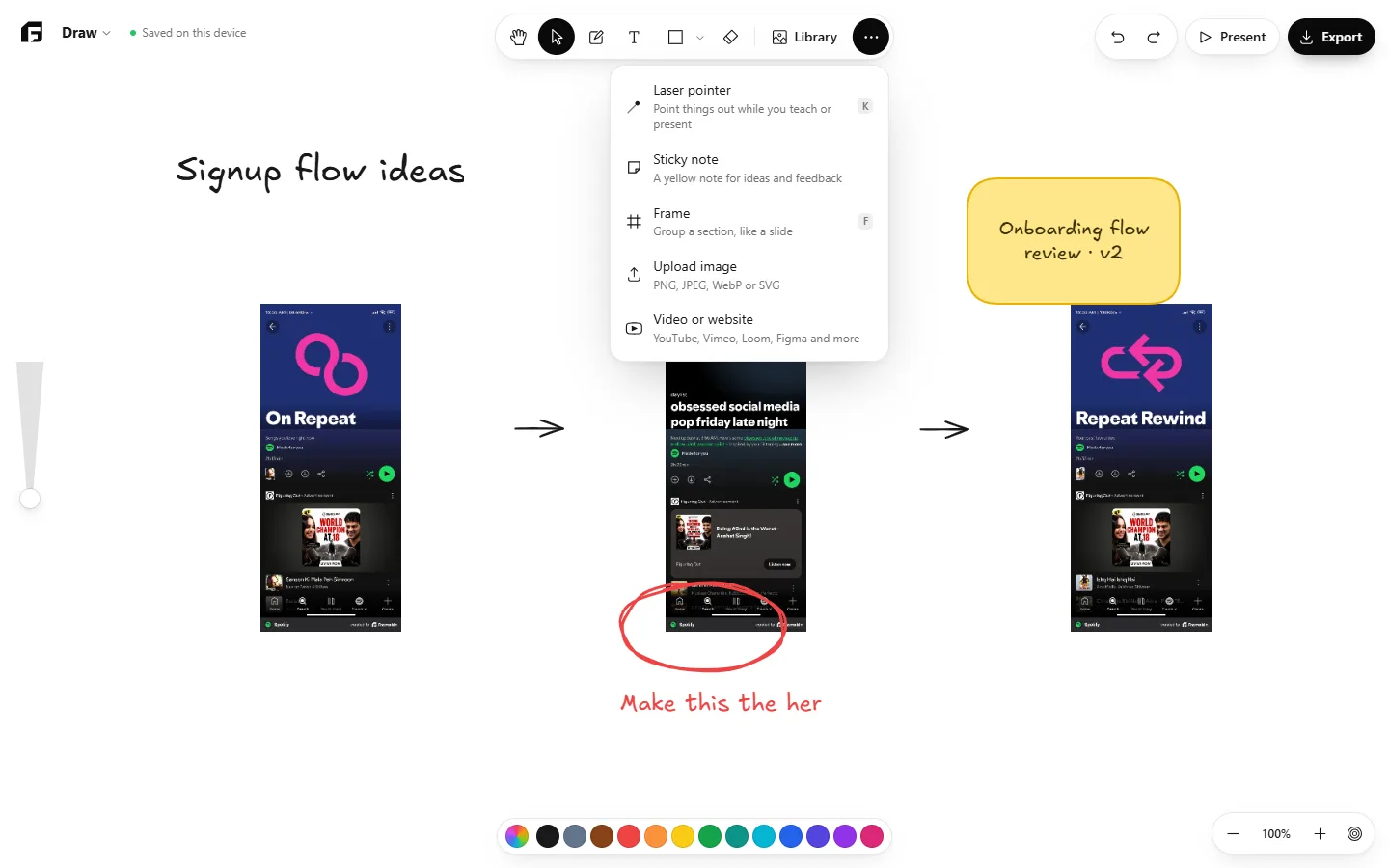
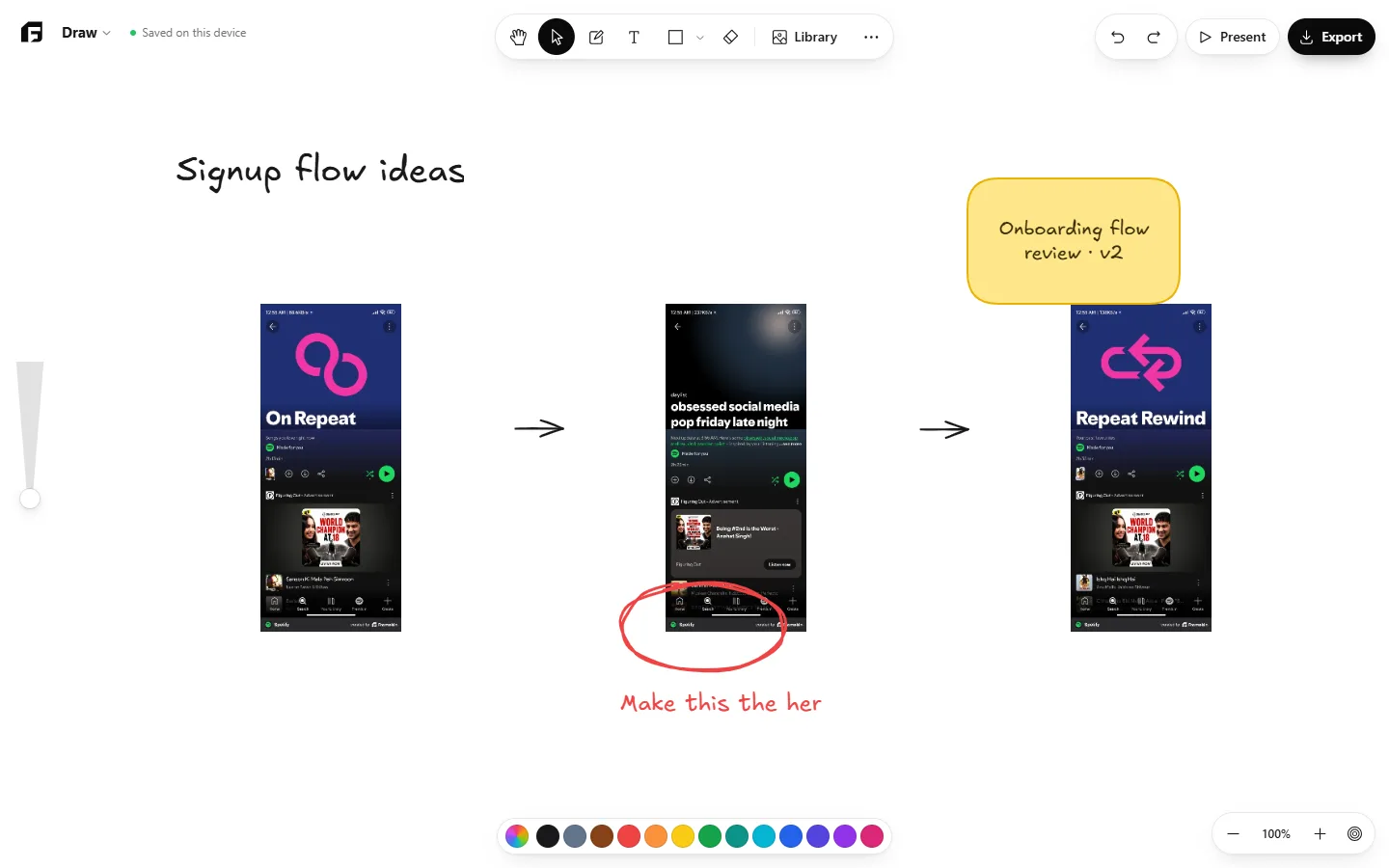
- Review real apps. Drag screens from apps like Spotify, Zomato or Notion straight onto the board, then circle, arrow and comment on them.
- Wireframe and map flows. Lay out screens in order, connect them with arrows and add notes between steps.
- Teach and present. Go full screen, switch to the laser pointer, and walk people through your board. Embed a YouTube or Loom video and it plays right on the board.
- Brainstorm. Sticky notes, frames to group a section, and an infinite canvas to spread out on.
The library: screens, logos and 200,000+ icons
Press / or click Library to open it. It has three tabs, and everything in it can be clicked to drop into the middle of the board, or dragged to exactly where it should go.
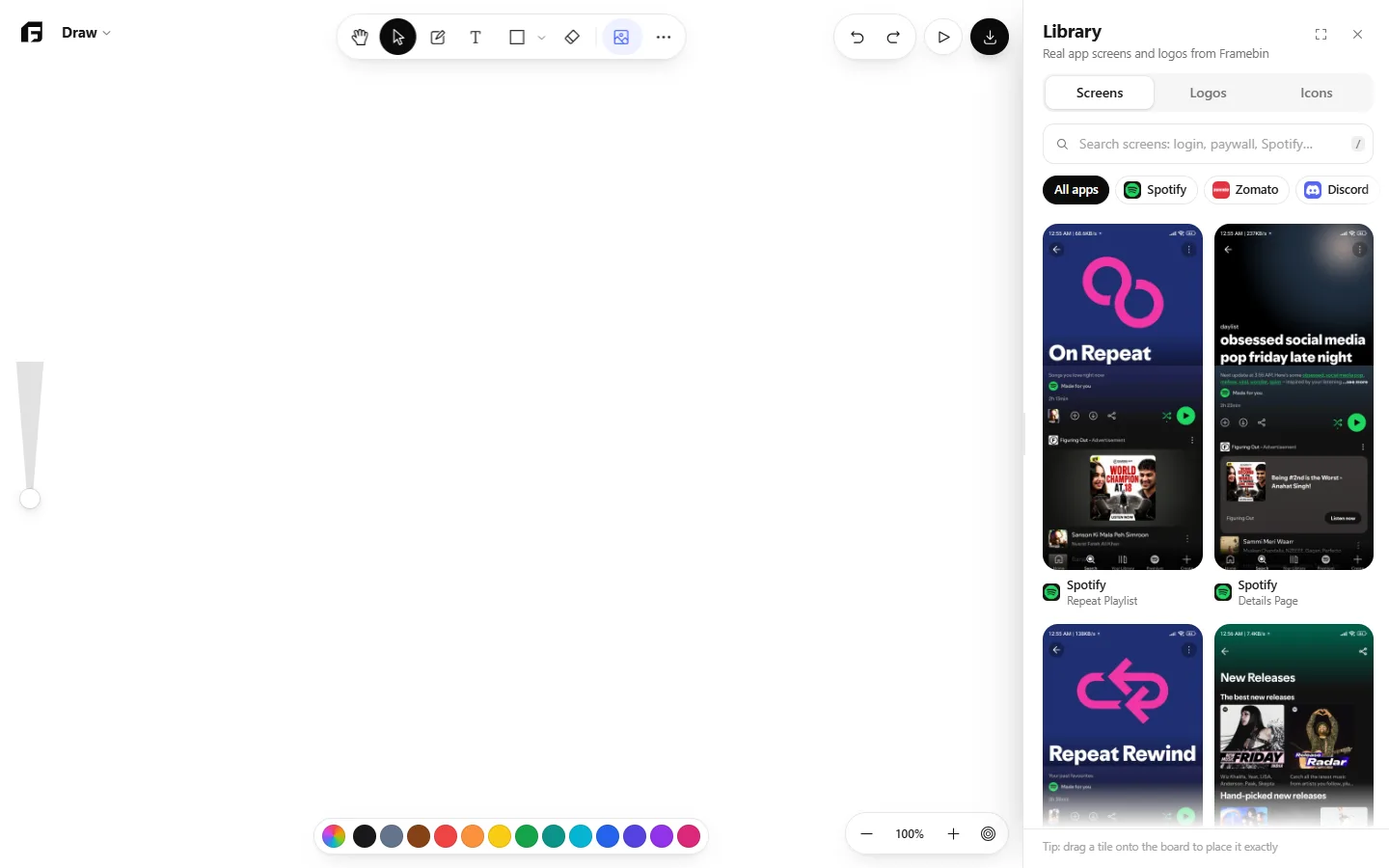
- Screens. Real, recent screenshots from the apps in the Framebin library. Pick an app from the chips to see only its screens.
- Logos. App icons for every app in the library, for flow diagrams, competitor maps and slides.
- Icons. More than 200,000 open-source icons from 17 sets, including Material Symbols, Lucide, Tabler, Phosphor, Heroicons, Font Awesome Free and two emoji sets: the same search as our Icon Studio. Icons come in the colour of your pen, so they match the drawing; untick Pen colour to keep their original colours.
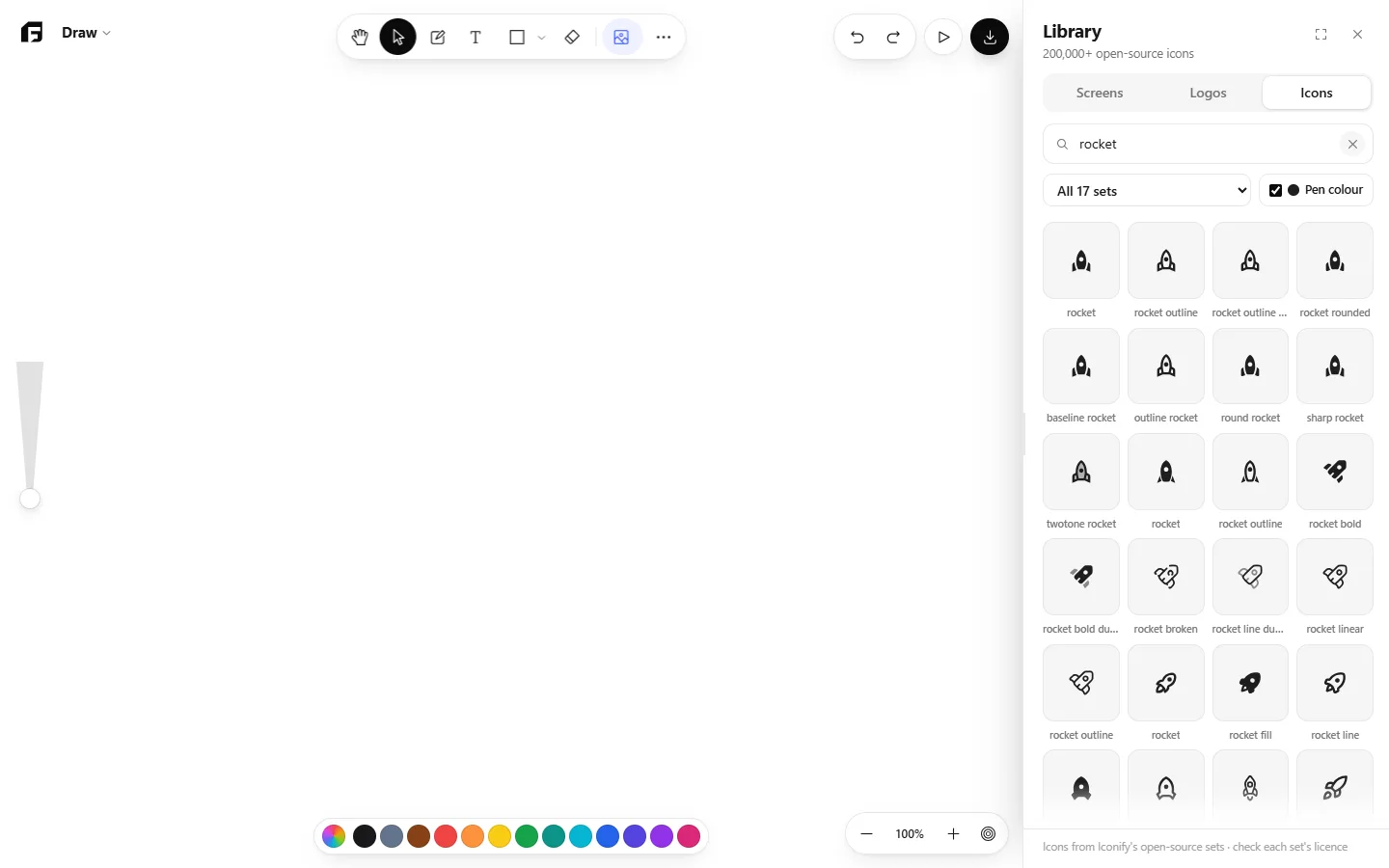
The panel resizes: drag its left edge, or click the expand button for a wider grid. On a phone it becomes a sheet you can pull up from the bottom.
Teaching, presenting and video
Framebin Draw is built to be talked over. Click Present and the board goes full screen with only a small bar for the laser pointer, the pen, panning and fit-to-screen. The laser pointer leaves a short trail that fades, so you can point without drawing on your work. Press Esc to come back.
Under More you can add a video or website. Paste a YouTube, Vimeo or Loom link and the video plays inside the board, next to your notes. It works for lessons, onboarding walkthroughs and design critiques.
Small things that make it quicker
- Stroke size, at a glance. The wedge on the left edge is thick at the top and fine at the bottom. Drag it and a dot in the middle of the board shows the exact size of your stroke at the current zoom.
- Shortcuts everywhere. Hover a tool to see its key: V select, P pen, T text, R rectangle, O ellipse, A arrow, E eraser, K laser. Press ? for the full list.
- Export your way. Download a sharp PNG at twice the size, an SVG that stays crisp at any size, copy the board as an image to paste into Slack or Docs, or save an editable file to open again later.
- Light and dark boards, from the Draw menu.
Your board stays yours
There is no sign-up and nothing to install. Your board saves in your browser as you work, so it is there when you come back on the same device. To keep a copy or move it to another computer, use Save editable file, then Open file on the other side. Clearing your browser data clears the board, so export anything you want to keep.
Built on Excalidraw
Under the hood, Framebin Draw uses Excalidraw, the open-source drawing engine loved for its hand-drawn style, with a Framebin interface on top. If you know Excalidraw, the shortcuts and files work the same way: Framebin Draw opens and saves .excalidraw files. What Framebin adds is the library of real app screens and logos, the 200,000+ icons in your pen colour, presenting with the laser pointer, the stroke-size wedge and a calmer, simpler toolbar.
Questions people ask
Is Framebin Draw free?
Yes. It is free to use with no account, no watermark and no limit on boards.
Do I need to sign up?
No. Open framebin.co/draw and start drawing. Screens from the library show the same previews anyone can see on framebin.co.
Can I open my Excalidraw files?
Yes. Use Open file in the Draw menu (Ctrl O) to open an .excalidraw file, and Save editable file to save one.
Does it work on a phone or tablet?
Yes. The toolbar and library adapt to small screens, and you can draw with a finger, a stylus or a mouse.
Open Framebin Draw at framebin.co/draw, press / and drag your first screen onto the board.